Filtering and Searching
Take control of your data
The live view can get very busy during a show (450+ logs with multiple linked log notes per live day is not unusual), so the live view allows you to filter and search your logs as you wish.
By default, the status of each log is divided into 2 broad groups:
- Open Logs (To Action, Ongoing & Submitted);
- Closed Logs (For Log, Resolved, Ignore, Duplicate).
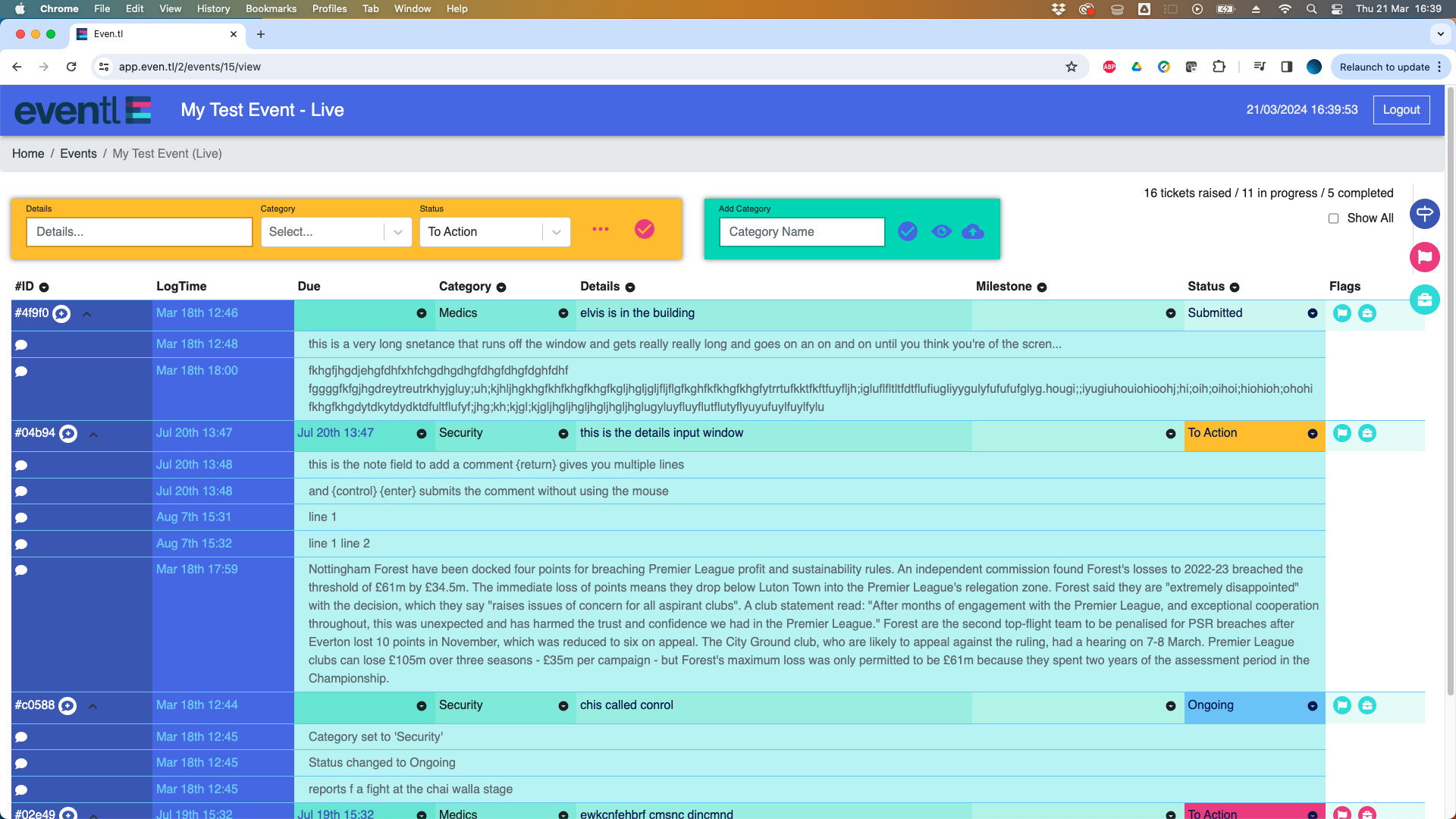
When the log opens for the first time, the default is to hide all lines with a status in the closed category, and only show those in the open category - changing a log’s status to ‘Resolved’ makes it disappear from the live view, allowing you to focus on the open logs still being processed.
To see all logs at any time, check the ‘Show All’ box in the top right of the screen and all logs will be visible once again.
Custom filter to see just the items you want to focus on
To help you focus on key tasks during the live phase, the system allows you to filter records, and also to search for specific data:
To filter your data, click on the Category, Milestone or Status dropdown to reveal all the possible options and check the boxes to turn them on or off as required.
The filtered columns work in tandem, so for example you could choose to show:
- log lines that are assigned to the fire team, AND are still ongoing;
- logs linked to the “Gates Opening” milestone AND still open;
- log lines that are in any category, but yet to be assigned;
- log lines that are assigned to either fire OR medics;
Find just the information you need right now
Free text search is available in 2 locations:
- Clicking on the drop-down in the ID column allows you to add a log ID (or partial ID) to find specific logs - enter at least 3 digits to return all matching log entries;
- Clicking on the drop-down in the Details column brings up a text entry window to find an entray in any log, linked log or note.
Search is not case-sensitive, so “medic” will return any words containing “medic”, eg: “medical” or “Medic”
Always in control
To bring all logs back to your screen at any time, simply cancel any filters or seaches in their drop-downs, and remember to slelect "show all" at the top-right.
Your filters and searches only affect your screen - other logged in users have their own settings
Remember, nothing is ever deleted!