Create a new event
To create a new event, simply click on the Create new event + button at the top right hand of your screen.
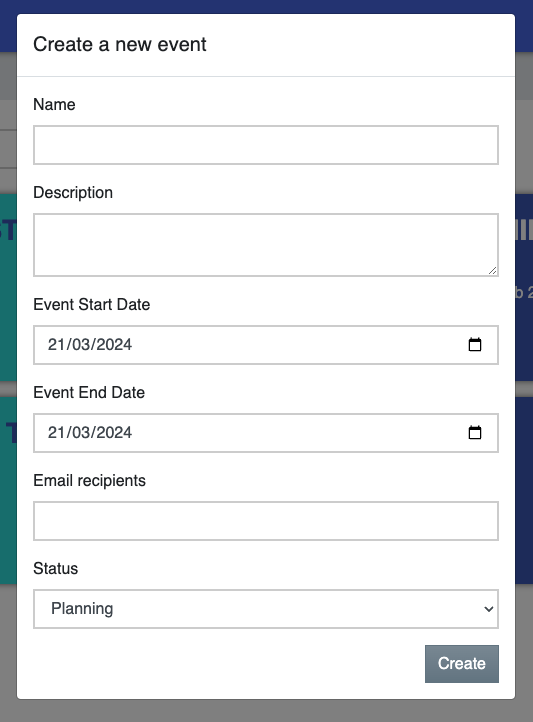
Create a new event in the window that pops up:
- Name - keep it short, this will appear in your dashboard view;
- Description - a place for a bit more detail about your new event;
- Event Start Date - the first date that you want to enter live logs from (eg. your first day on site) - you can work on events before this date in planning mode;
- Event End Date - date that the event is scheduled to finish and you would expect to move to post mode for reporting;
- Email Recipients;
(Optional) - add 1 or more email addresses here and those people will receive a copy of the .pdf report when the event moves into post mode
- Status - planning is the default here, but you can also select live to start
entering logs straight away in a new empty event;
Click ‘Create’ and your new event will appear in your event dashboard.
Depending on your package, you can have 1 or more events in Live mode at any time, all packages include unlimited events in Pre and Post modes.